Network Interface
In this section, we will discuss how network issues can affect an operation so that you are prepared to handle the situation properly may it arise.
Network panel
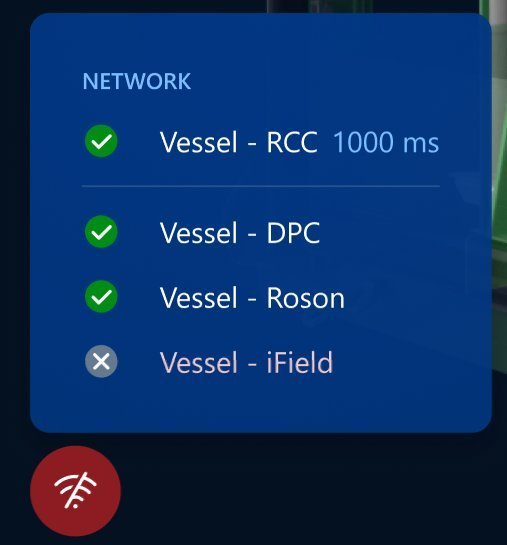
This is where you can track the status of the connections between Vessel and different systems.
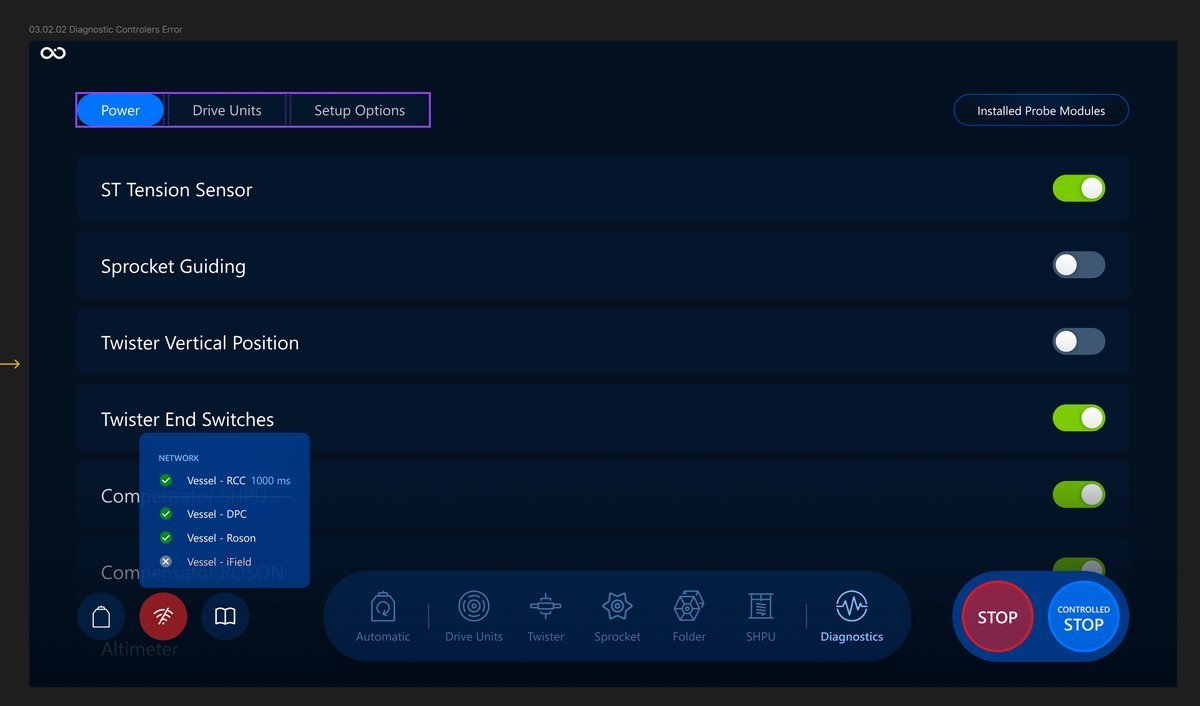
Tap the network icon to open the network panel:
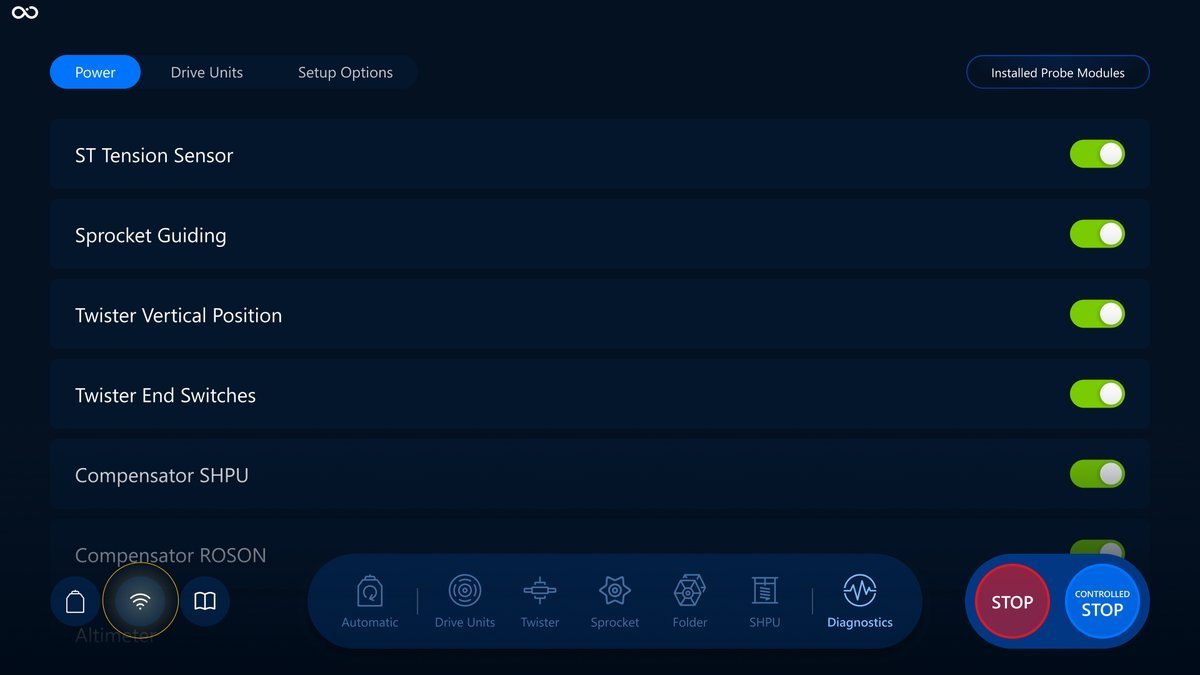
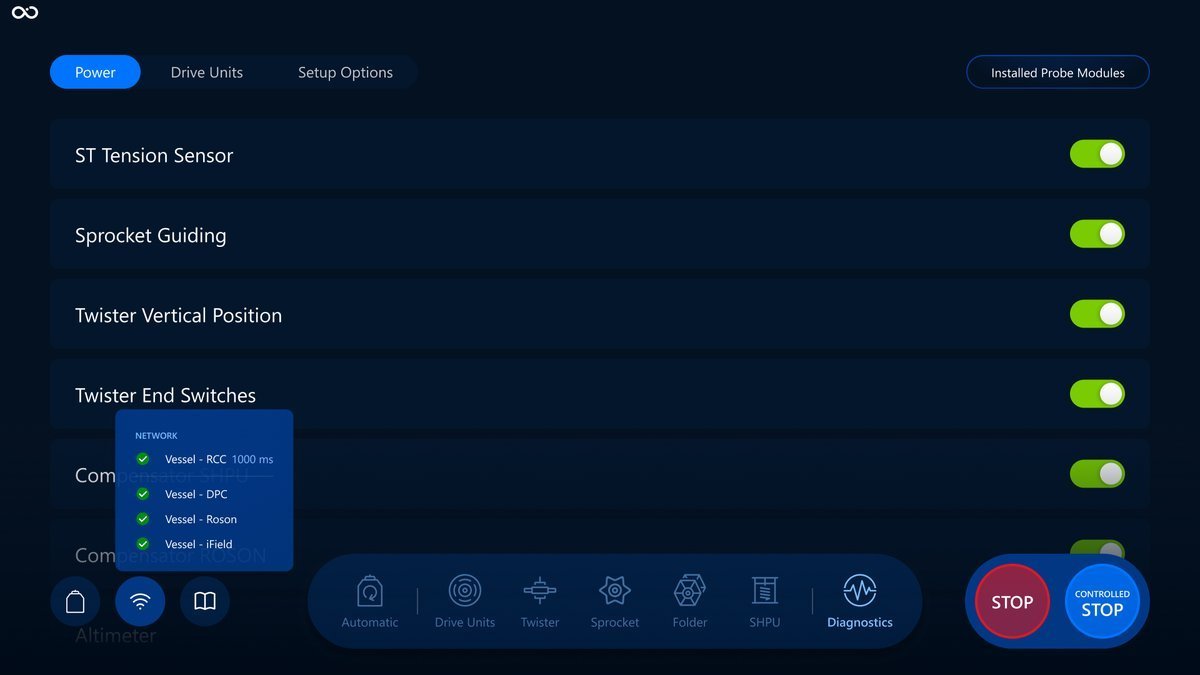
Opened panel on the Visualization screen:
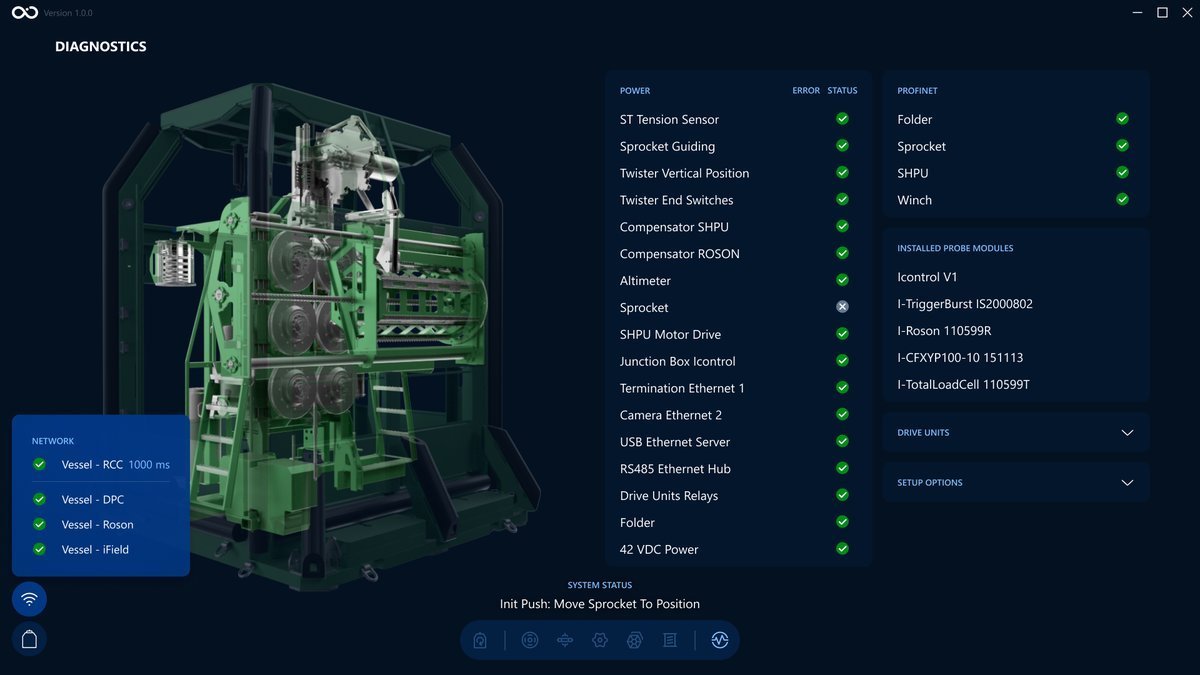
The next picture represents all the connections and statuses. The icon on the left side shows the status of the network connection.
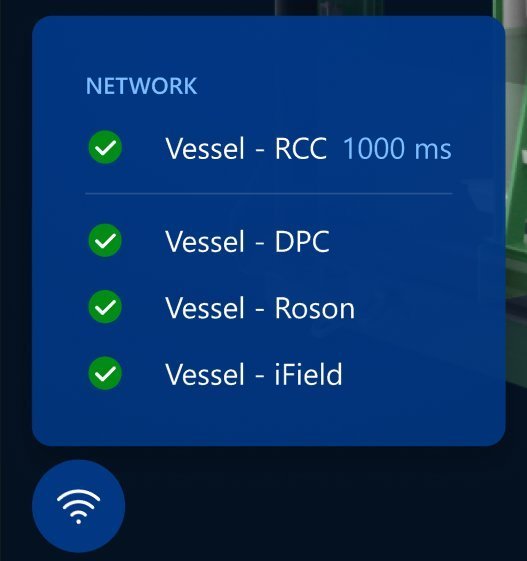
In case of a connection loss, the button that opens the panel and the respective icon will change to error:
Connections
Throughout an operation, you may experience connectivity issues between all software related to CPT execution. This section aims to describe each connection and what happens to software once a connection issue appears.
| Connection | Description | No connection Impact |
|---|---|---|
Vessel - RCC |
Represents the connection between CPT Vessel software and Remote Control Center. This connection provides additional information about the latency placed on the right side.  |
|
Vessel - DPC |
Represents the connection between CPT Software and DPC.  |
"Recover CPT" and "Accept (DPC State Change)" buttons will be disabled. All CPT controls are enabled, as controlling the CPT will be feasible without DPC connection. |
Vessel - Roson |
Represents the connection between CPT Software and Roson HMI.  |
All controls are disabled, as connection with OPC Server failed and no commands can be sent. IField software is enabled; however, executing a new test won’t be possible since controlling the Roson is not possible. |
Vessel - IField |
Represents the connection between CPT software and IField.  |
All controls are enabled, as controlling the CPT will be feasible without IField connection. IField software is not possible to control. |
To address any network issues, contact Service Desk or Support Team.
Network issues during an operation
There are three ways the system behaves during Network issues.
-
If there is Network issues as in the screenshot below, network icon should be red to alert the user there is at least one connection issue.
-
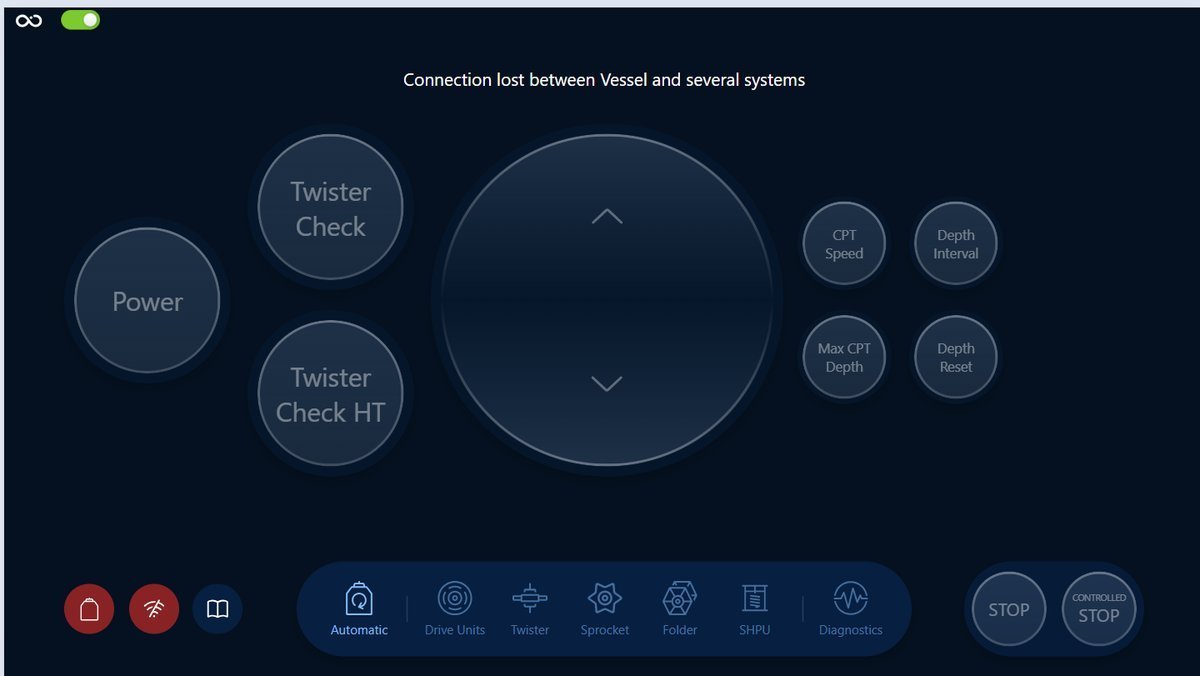
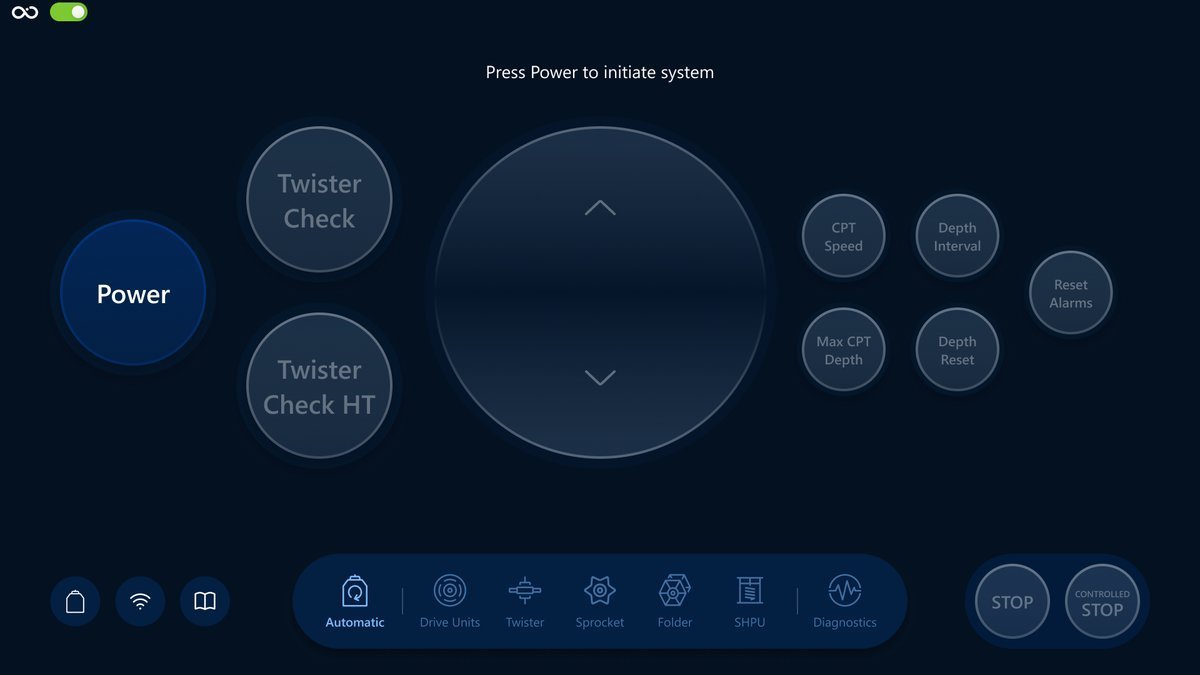
If there is no connection with Roson, all the buttons are disabled, meaning it is not possible to click them.
-
If requested action fails the corresponding button becomes yellow and the system message appears.
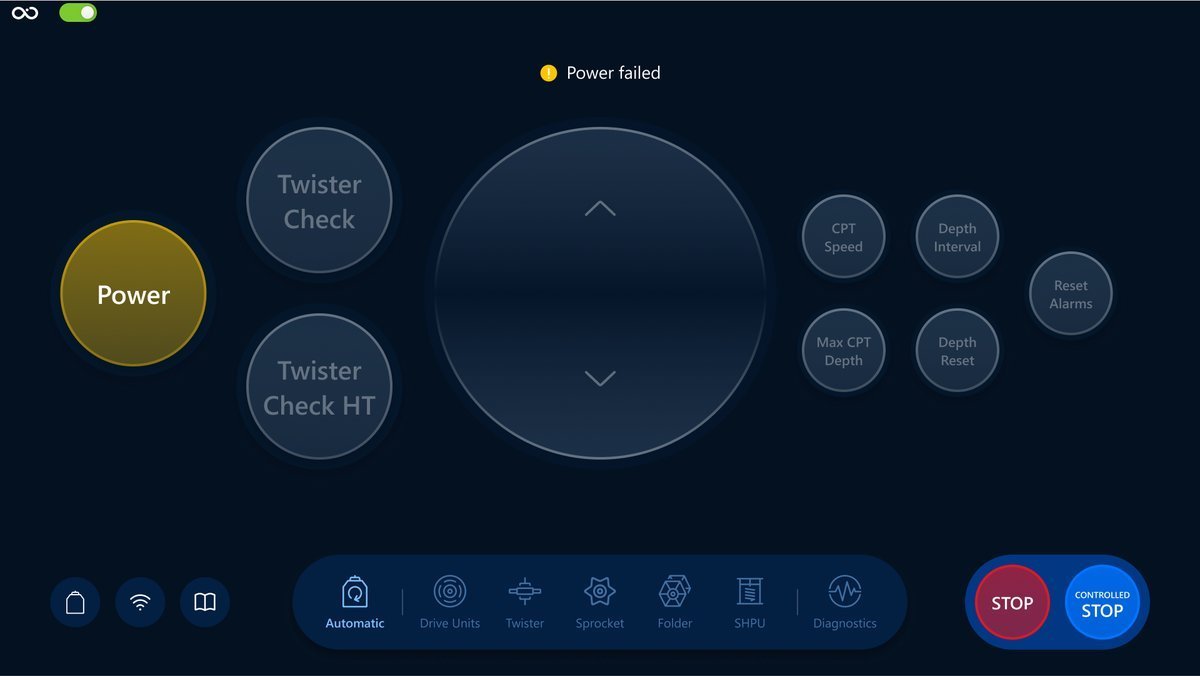
After 3 seconds the button should switch to normal state:
Next section
In this section, you've learned about the network issues and how to work with them. Feel free to move on with the DPC Integration.