DPC Interface
This section will look closer at the DPC and how to use its controls.
What is the DPC?
The OI Armada Dynamic Payload Control (DPC) System operates and monitors payloads deployed from the OI Armada fleet of Unmanned Surface Vessels (USVs). This knowledge base contains information pertaining to DPC system software, including relationships with external systems, as well as developer and end-user information to provide a comprehensive OI Armada DPC information database.
The chosen method for communication with DPC is using states, for each part of the launch and recovery process. The DPC provides the current state and target state to the payload, and the payload uses these states to determine any checks that should be completed. The payload provides the state it is configured to be in and the system's health.
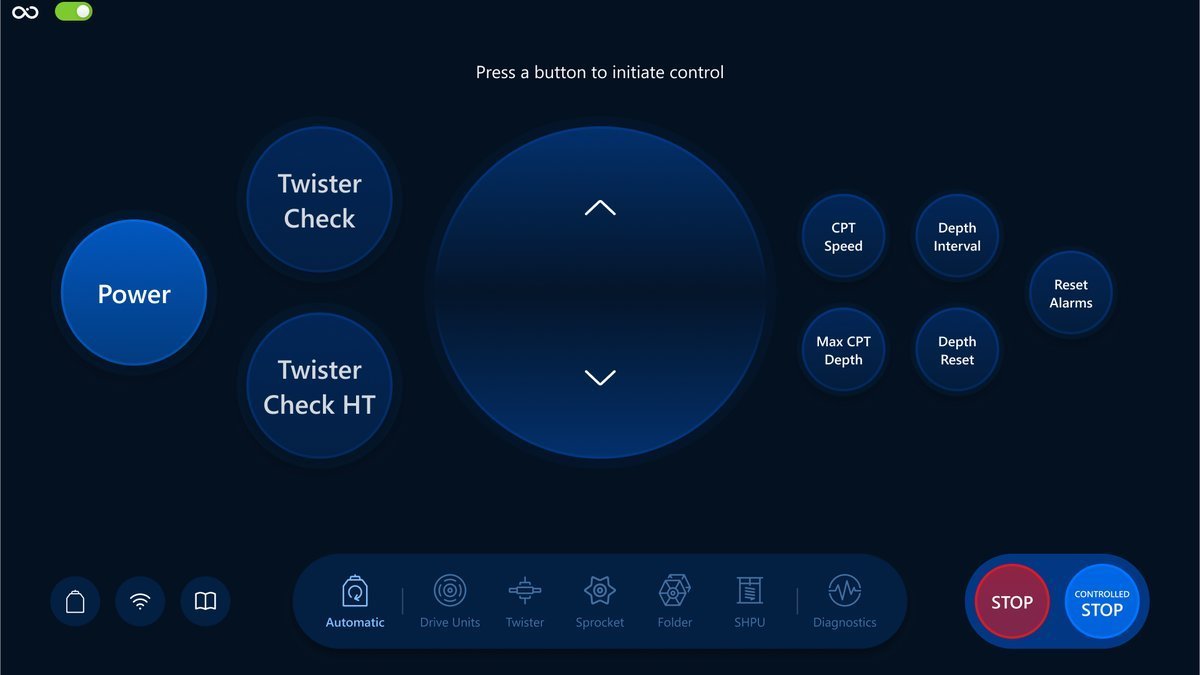
Modal usage
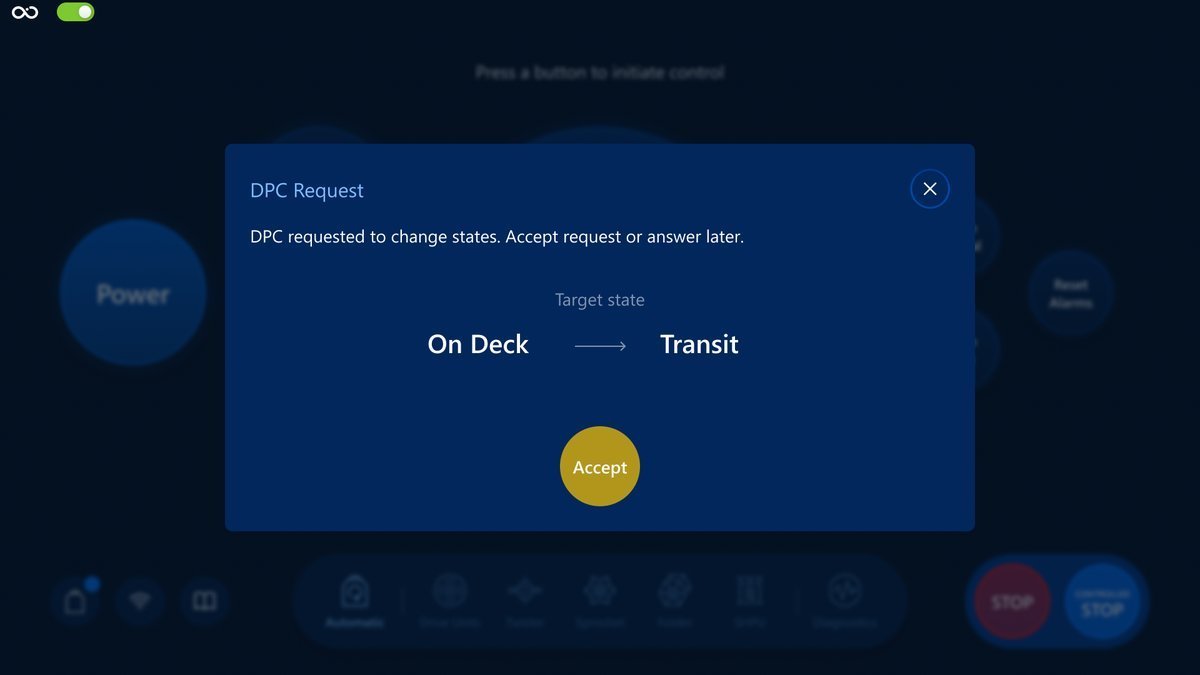
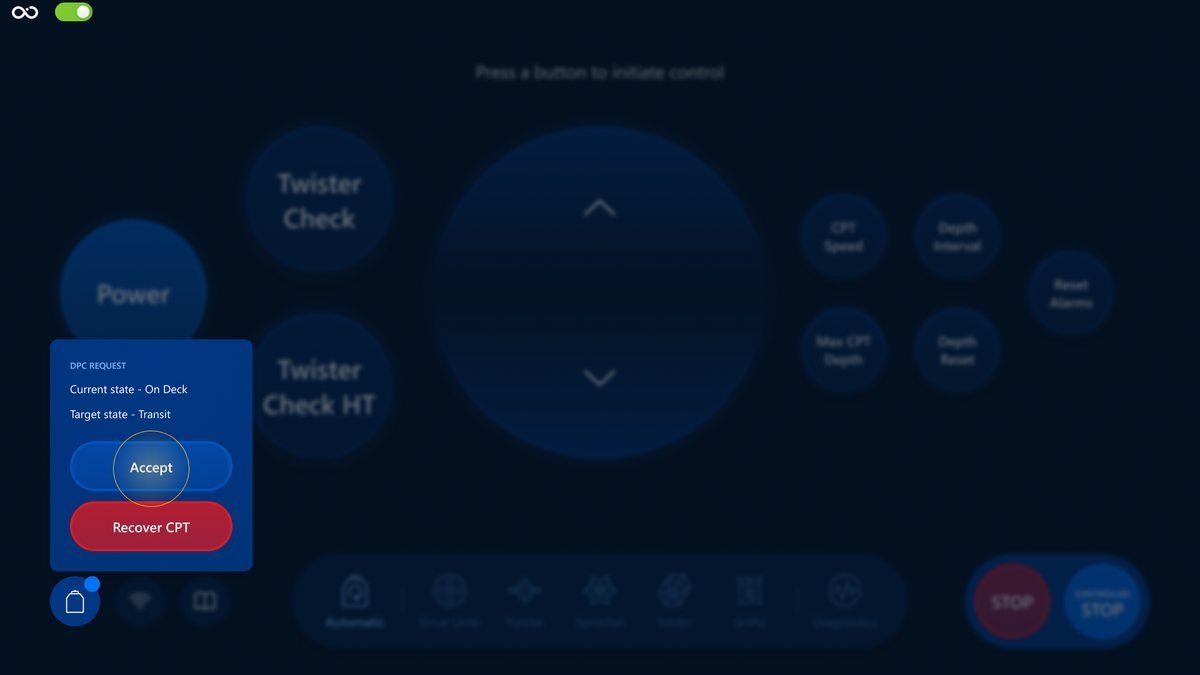
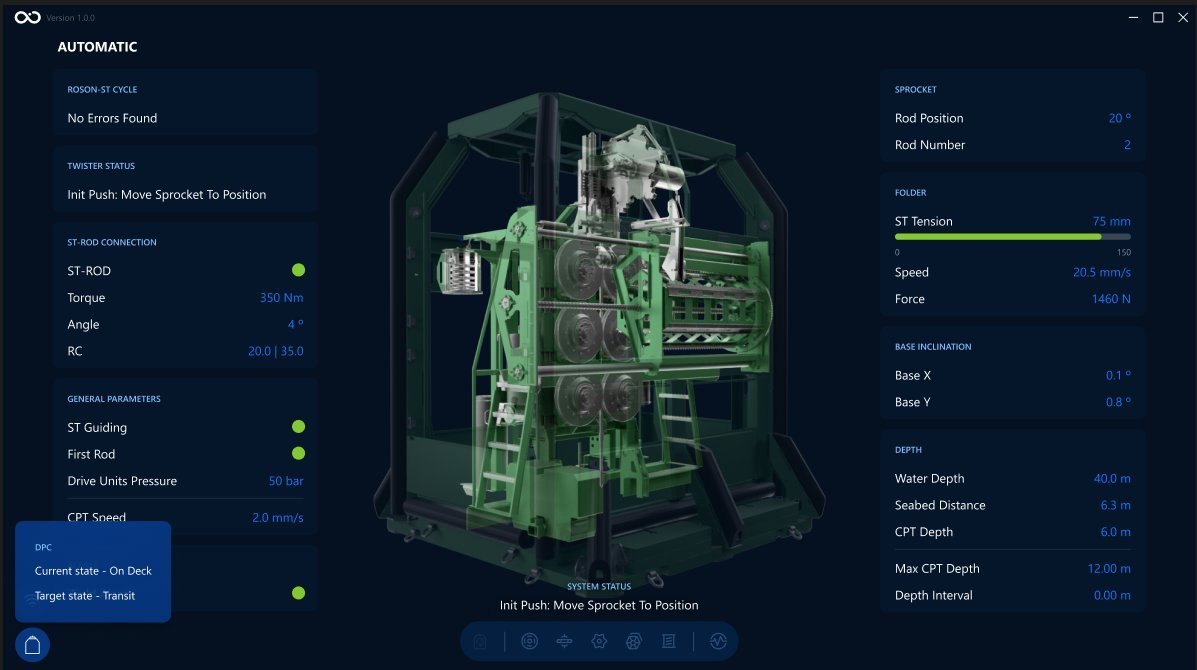
Once DPC requests to change states, the modal will appear on the screen:
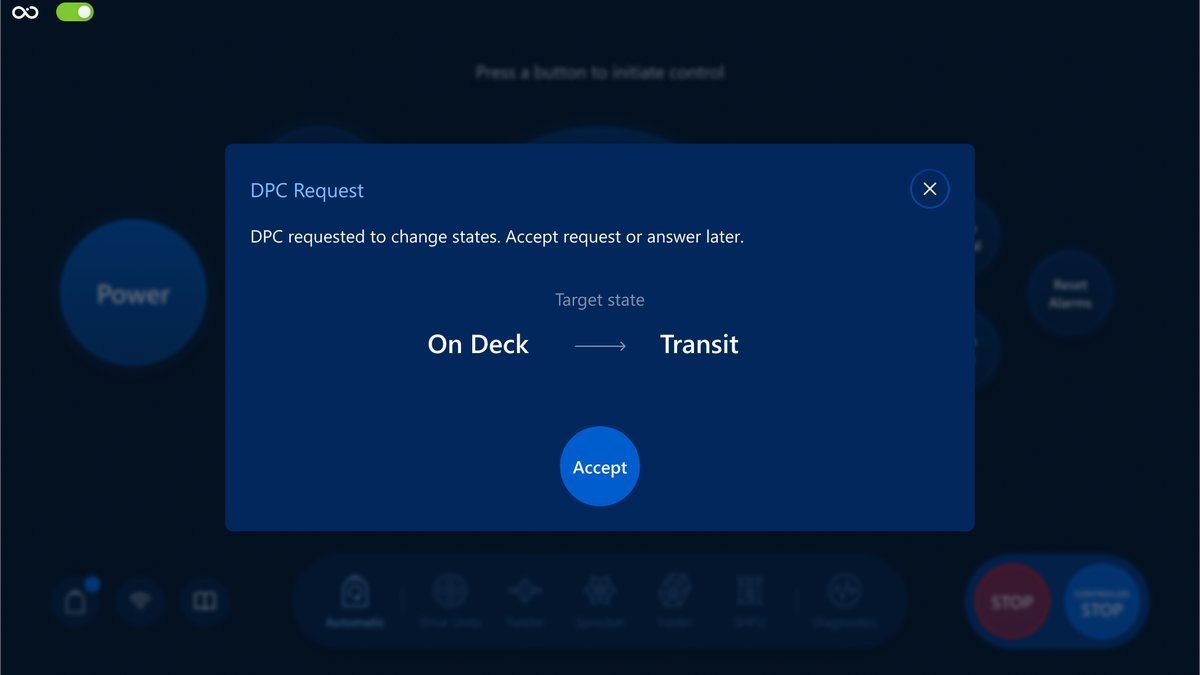
Visualization screen:
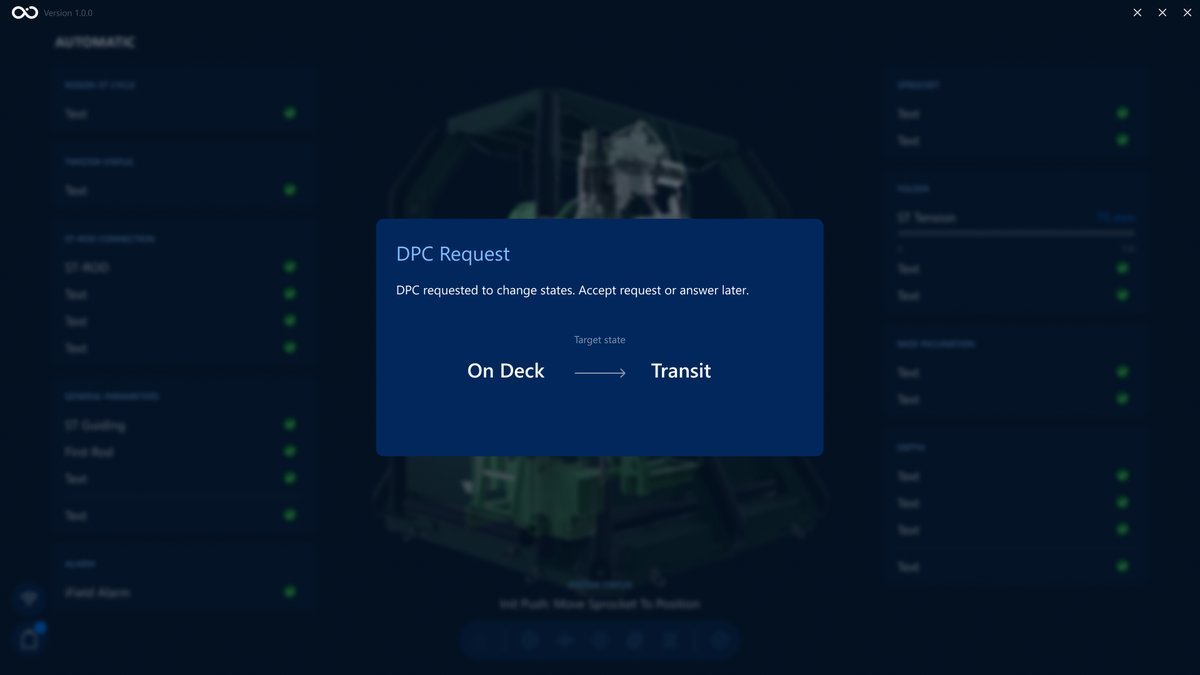
Tap the Accept button to accept the DPC request or close button to answer later.
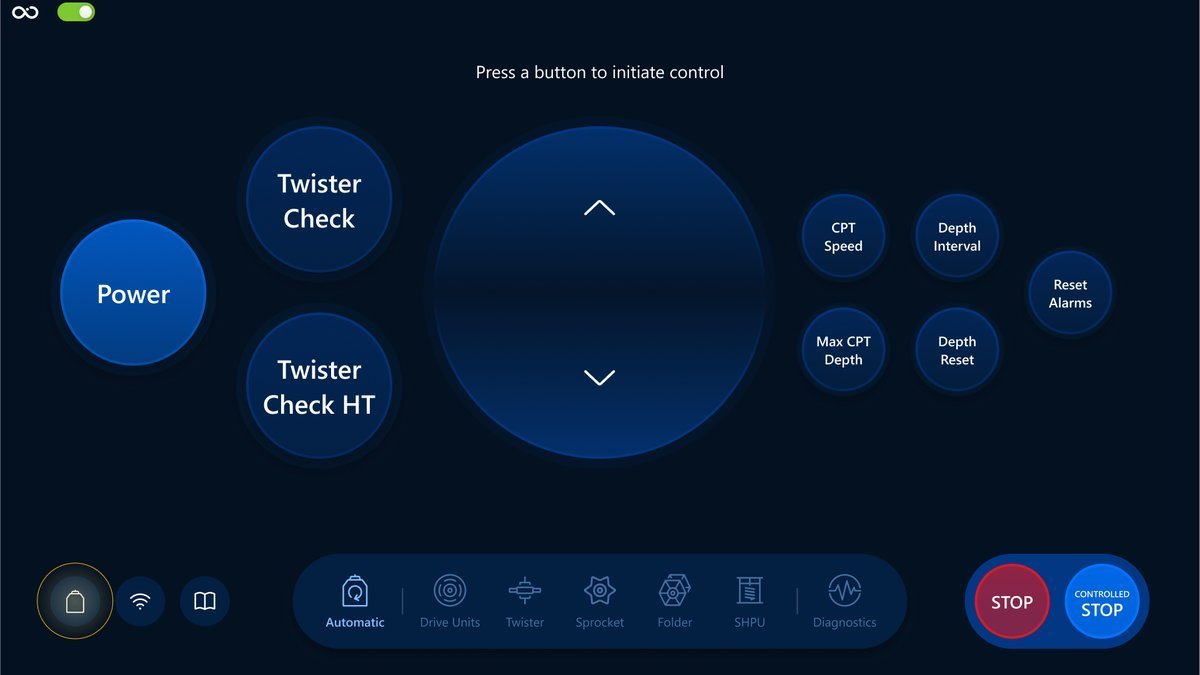
The modal will be closed automatically once the Accept message is sent:
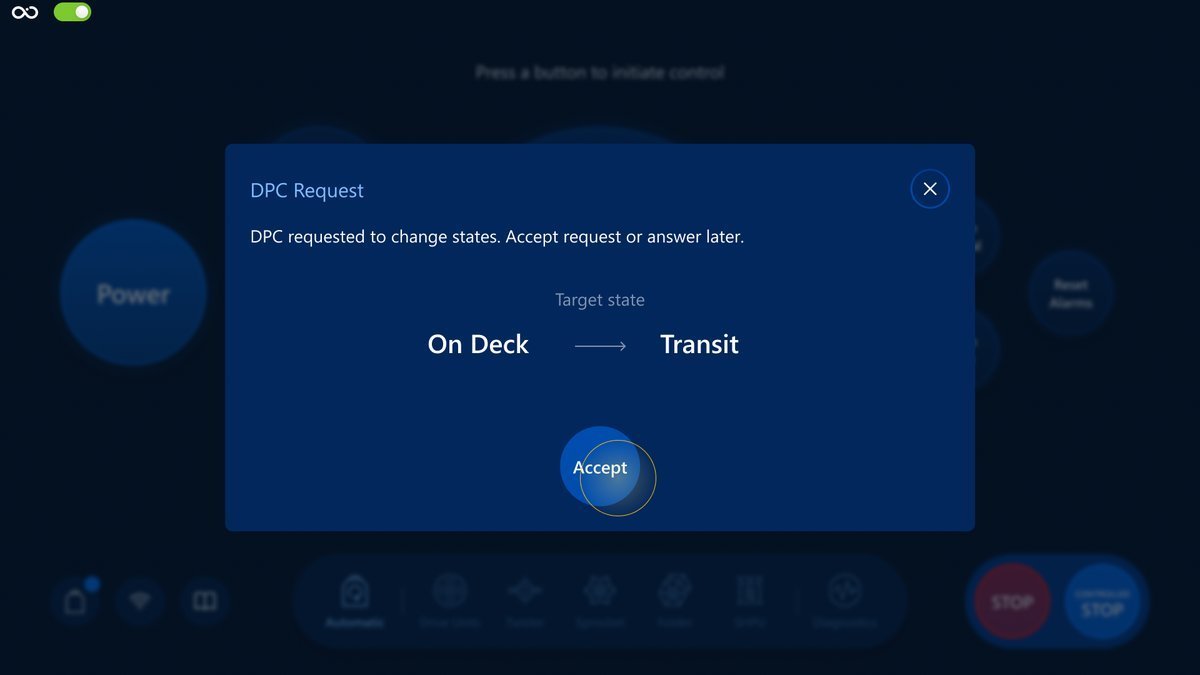
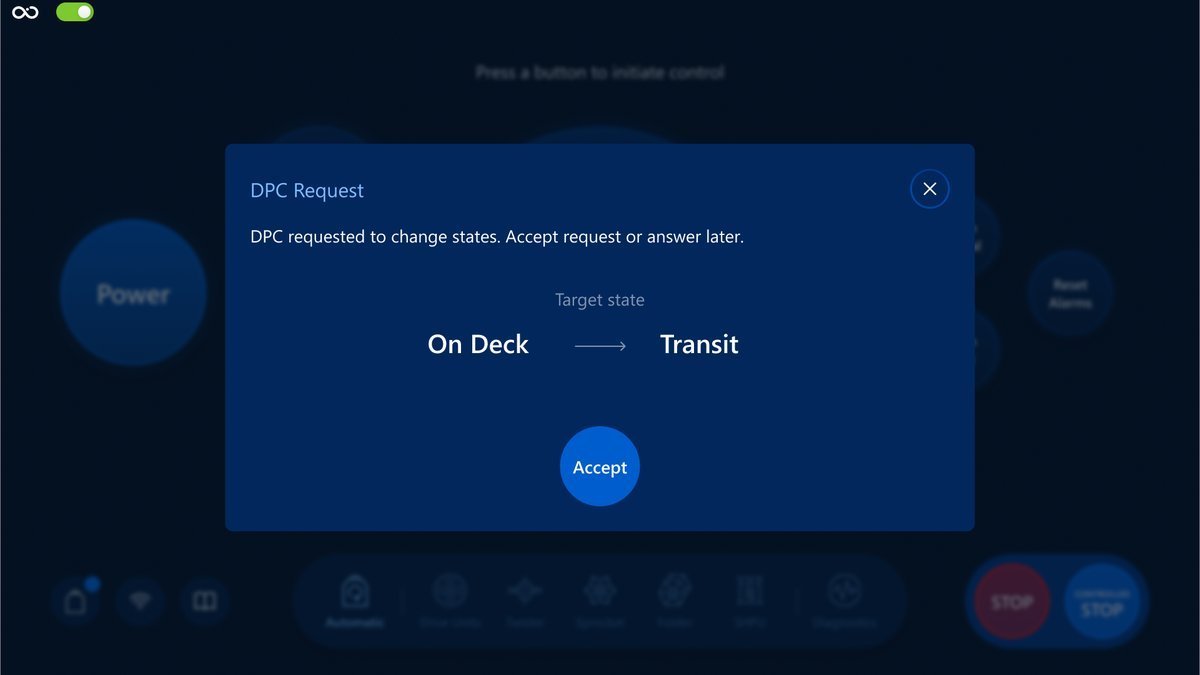
Also, you can see that the notification is cleared near the DPC button since the request was successfully accepted.
Request pending -> notification displayed:

Request accepted -> notification cleared:

If something goes wrong, you will see the Accept button colored yellow for 3 seconds. After that, it turns back to a normal state, and you can try to accept the request again:
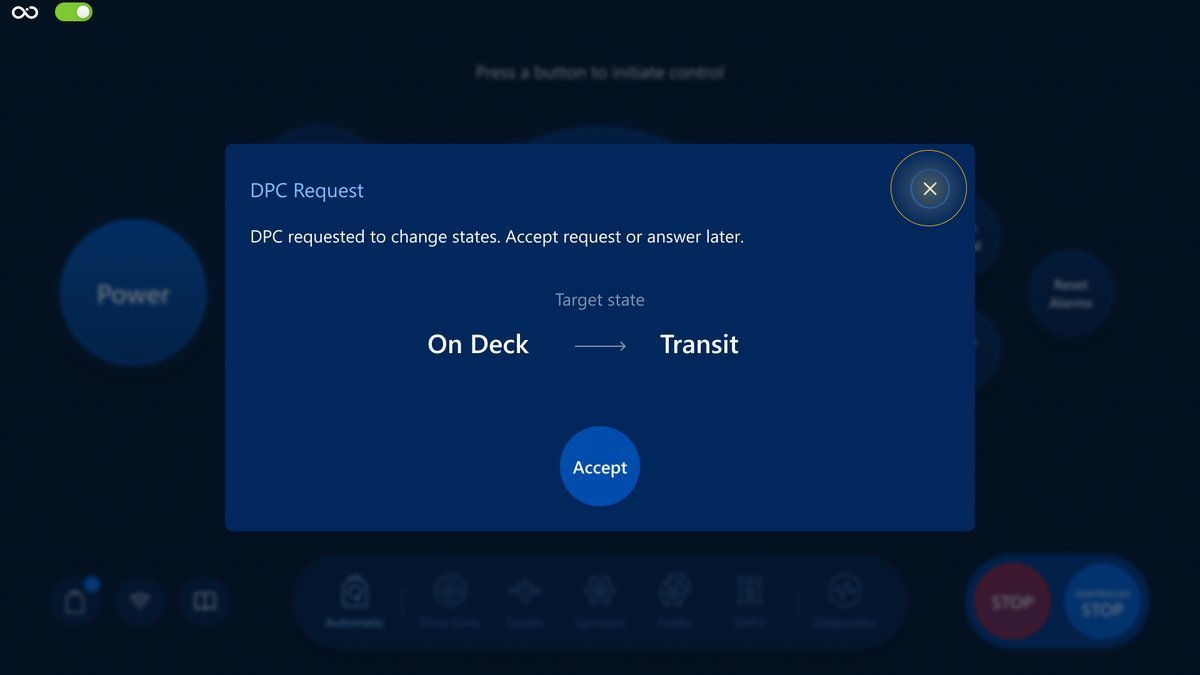
If you need to close the modal and answer later, just tap the close button. The request can be accepted through the DPC panel:
DPC panel usage
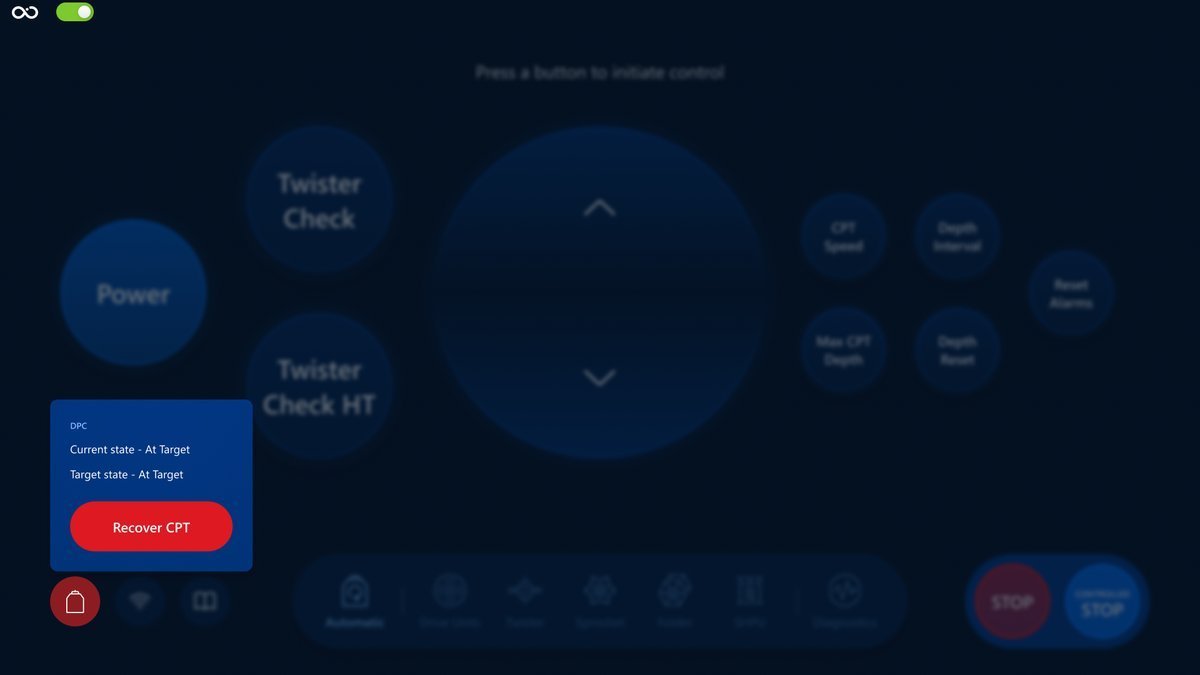
Besides accepting the request, the DPC panel provides other options, like Recover CPT or Cancel Recovery.
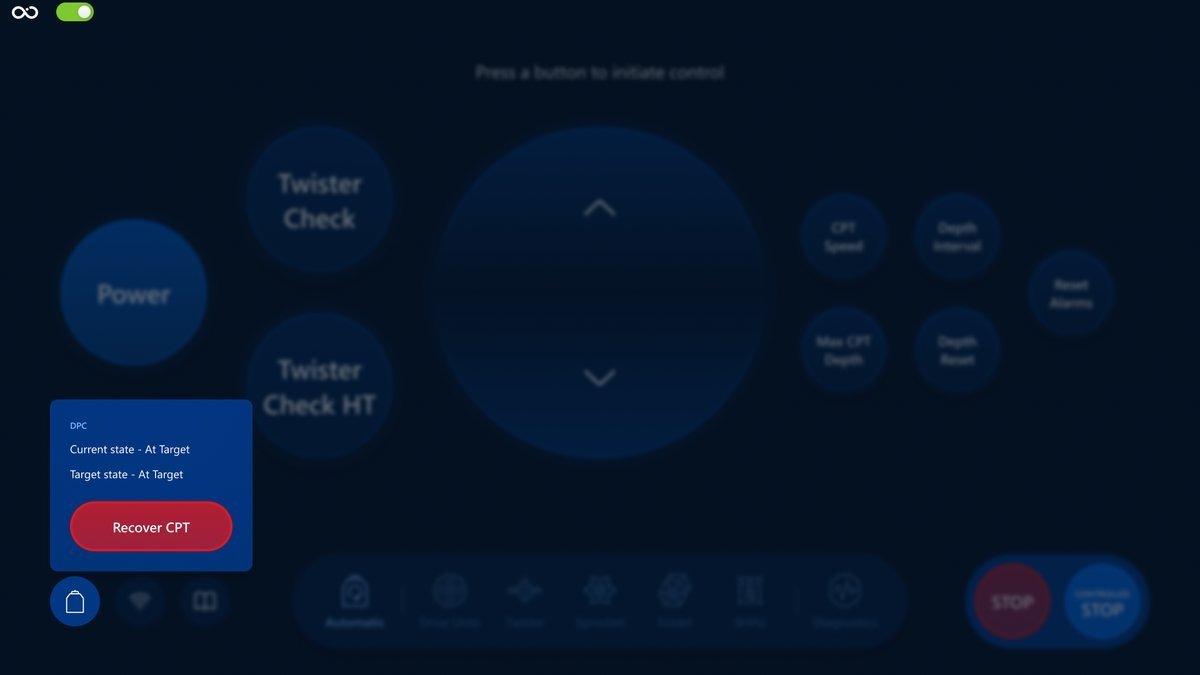
To open the panel tap the DPC button:
Accept
Accept button serves the same purpose as the button in the modal. Just tap to accept the request. After the request is accepted, the Accept button should disappear:
Visualization screen:
Recover CPT
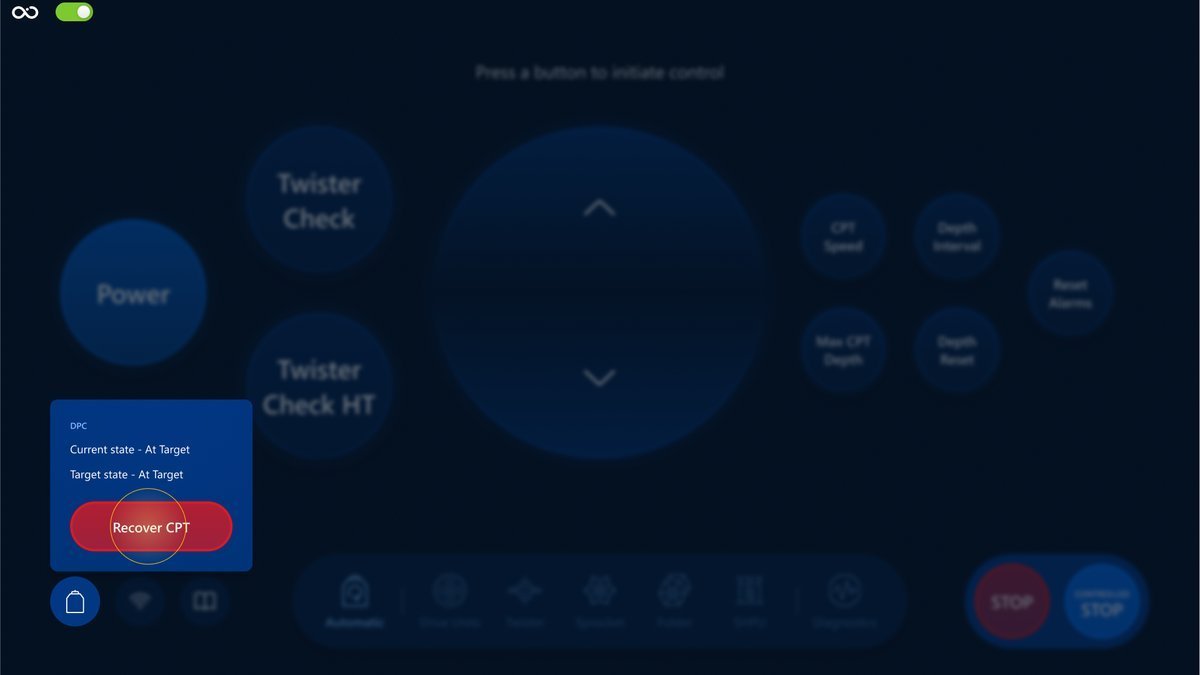
Recover CPT should be used to inform DPC that an issue has arisen on the Roson that makes it unable to proceed with the operation and requires to be recovered back to deck.
The DPC connection icon turns red when the Recover CPT is active.
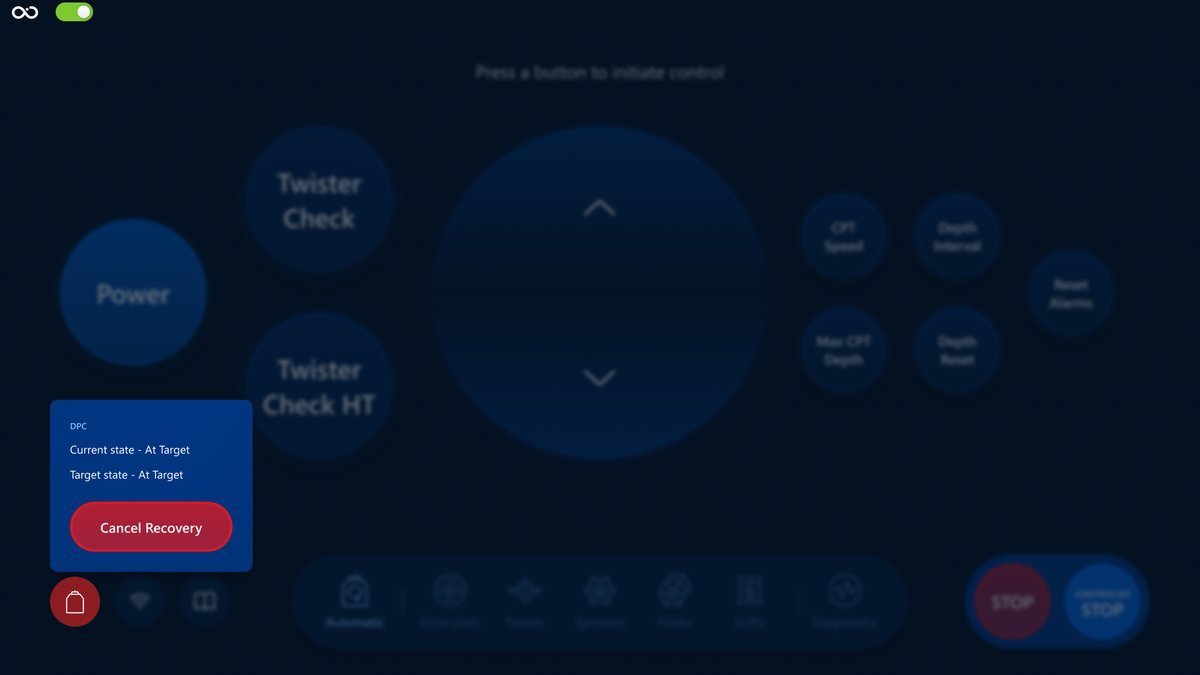
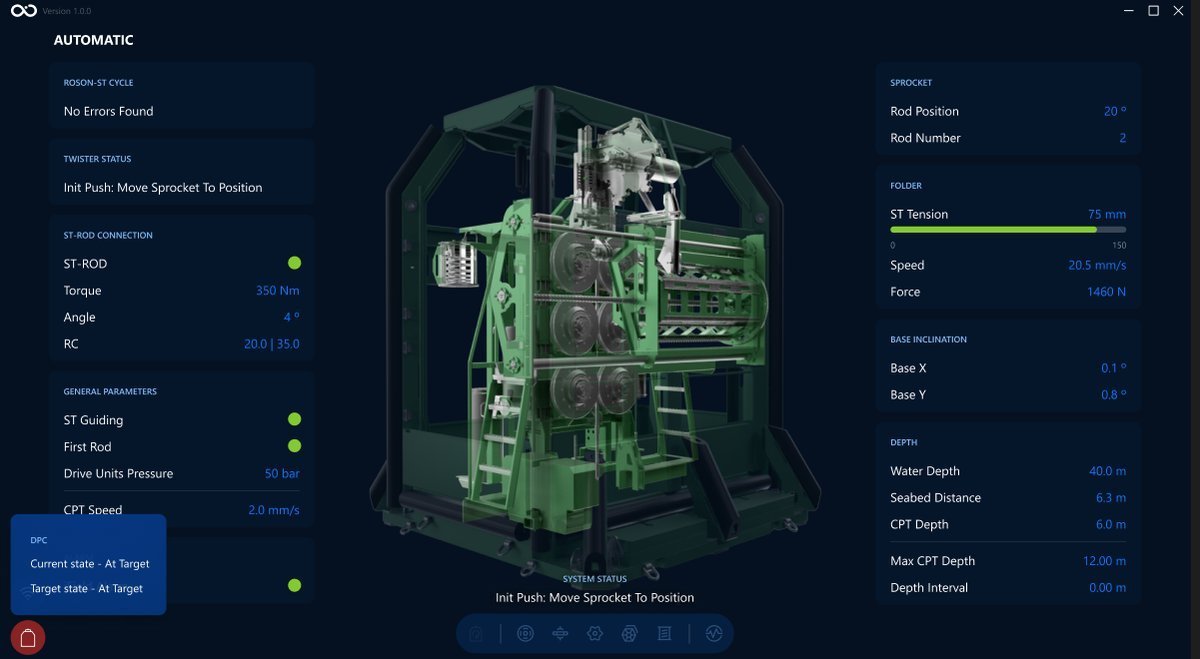
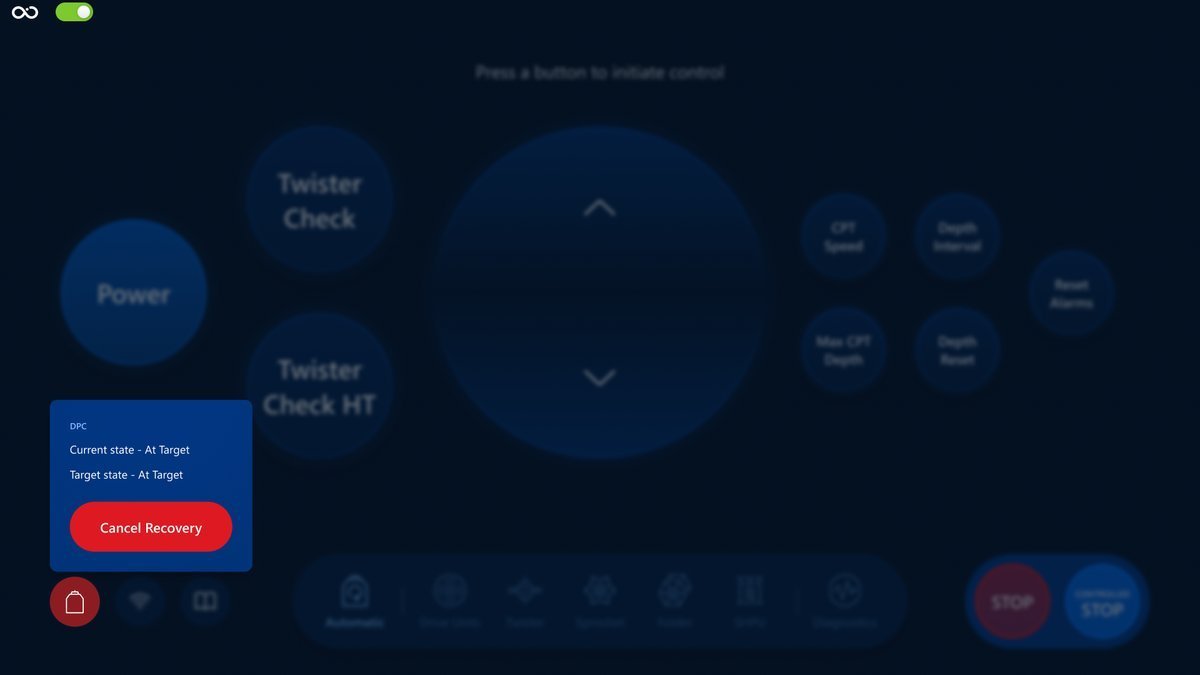
Tap the Recover CPT button to start the recovery. If the recover command was sent with success, the Cancel Recovery should appear instead of Recover CPT:
Visualization screen:
Cancel Recovery
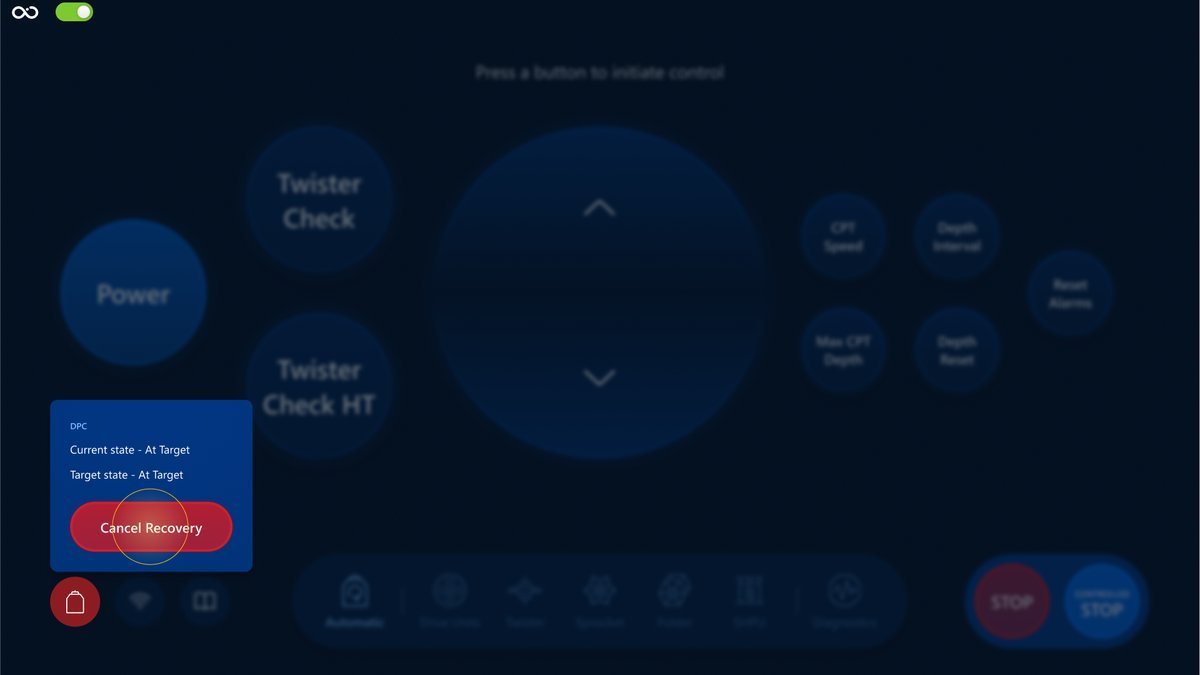
Cancel Recovery is used to inform DPC that the issue is no longer present and we can continue the operation.
If the Cancel Recovery command was sent with success, the Recover CPT button should appear instead of Cancel Recovery:
Next section
In this section, you've learned about DPC Integration and how to use a panel with a modal. Feel free to continue the reading in the Troubleshoot section.